
About Dodotool NEXT
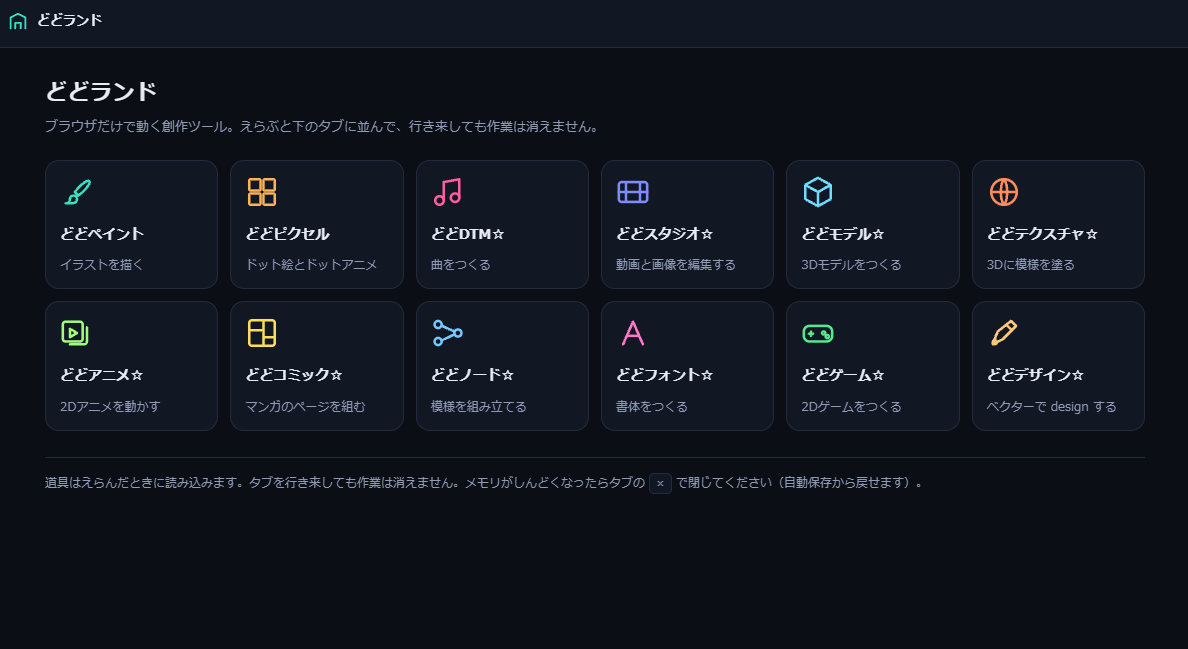
Dodotool NEXT is a collection of creative tools for drawing, making music, editing videos, and creating games—all right inside your browser. No software installation or account registration is required. Just choose the tool you want to use from the screen above and get started right away.
There are 18 tools in total. They all share the same interface design, so once you learn how to use one, the others will feel familiar too. You can also pass data between them, like bringing pixel art into a game or placing a drawing onto a manga panel.
Included Tools
Art & Design
- Paint: Draw illustrations. Supports pen pressure, layers, masks, and PSD read/write.
- Pixel: Pixel art and dot animation. Includes palettes, frame-by-frame animation, and GIF export.
- Design: Create vector logos and posters. Supports PDF and CMYK output for print.
- Comic: Layout manga pages. Panel splitting, speech bubbles, and screentones.
- Font: Create your own typeface and export as OTF or TTF.
Motion & Sound
- Anime: Animate 2D graphics. Features keyframes and onion skinning.
- Studio: Video and image editing. Timeline, subtitles, and color adjustment.
- DTM: Make music. Piano roll, sheet music, chords, mixer, MIDI and MP3 export.
- Sound: Create sound effects while viewing waveforms.
3D & Games
- Model: Create 3D models. glTF read/write.
- Texture: Paint colors and patterns directly onto 3D models.
- Node: Connect nodes to generate patterns and textures.
- Game: Create 2D games. Maps, events, playtesting, and export.
- Map: Arrange tiles to build maps.
Diagrams & Documents
- CAD: Draw blueprints with precise dimensions. DXF read/write.
- Flow: Flowcharts, organizational charts, and mind maps.
- Book: Format text into book form. Vertical writing, furigana (ruby text), table of contents, EPUB and PDF.
- PDF: Edit PDFs. Annotations, form filling, and page rearrangement.
If you’re not sure where to start, click “Start from a sample” on the screen above to open a completed project. Tinkering with the contents is the fastest way to learn.
Supported Environments
- PC: Recent versions of Chrome, Edge, Firefox, and Safari. A screen width of 1366px or wider is recommended for the best experience.
- iPad: Available in Safari. Supports touch and Apple Pencil pressure sensitivity. You can use it in full-screen mode by adding it to your home screen.
- Smartphones: You can open it, but the screen is narrow, so it’s best suited for viewing or minor touch-ups.
Once you’ve opened it once, it will work even when you’re offline.
Saving Your Work
Your work-in-progress is automatically backed up in your browser. Even if you accidentally close the page, you can pick up right where you left off the next time you open it.
However, since these backups are stored in your browser data, they will be deleted if your browser data is cleared. On iPad Safari, backups may sometimes be cleared if the page hasn’t been opened in a while. For important projects, please use “Save” in the menu to keep a file on your device. Saved files are designed to be compatible and openable in future versions as well.
FAQ
Do I need to install anything?
Nope! Just open this page and you’re ready to go.
Do I need to register an account?
Not at all.
Where are my creations saved?
Inside your browser and in the files you save. We never save your artwork on our servers.
Can I draw on an iPad?
Yes, you can! Apple Pencil pressure sensitivity is also fully supported.

コメント